Skip to content
English
  • There are no suggestions because the search field is empty.

Accelerate Start-up Guide: Client Management

Use this guide to learn more about navigating through the client policy management section and unique insurance opportunity filters in Accelerate.

Video Resources

If you prefer to watch a video, check out our YouTube training video on client management

Click Here to Access The Training Playlist.

General Navigation

Select the Manage Client icon from the home dashboard to access your client and policy data.
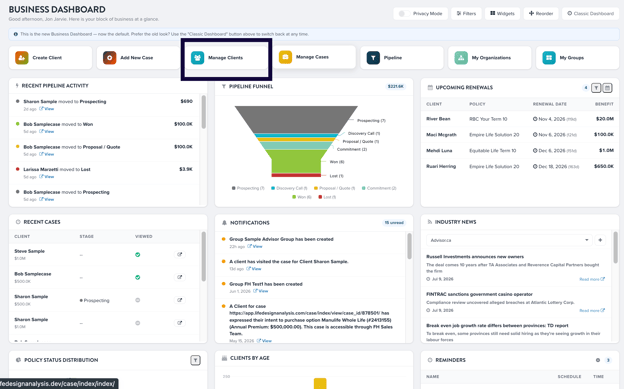
Screenshot 2026-07-09 at 1.02.49 PM

Once on the Manage Client page, you have a few options to find a client, a policy or opportunities.

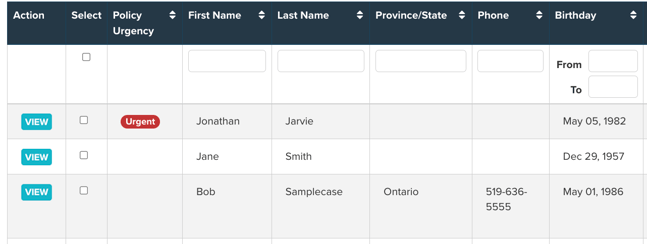
To find a specific client, family, or client within an age range, you can sort or search for these using the headers on the left side of the page.
Screenshot 2026-07-09 at 1.08.57 PM

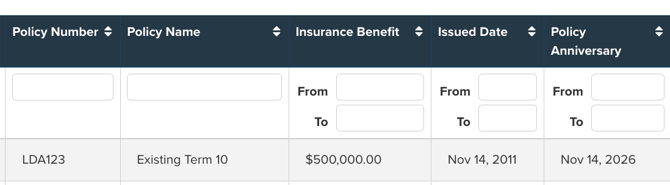
The headers on the right will support you in finding specific policies, insurance benefits, and issue date ranges.
Screenshot 2026-07-09 at 1.09.21 PM

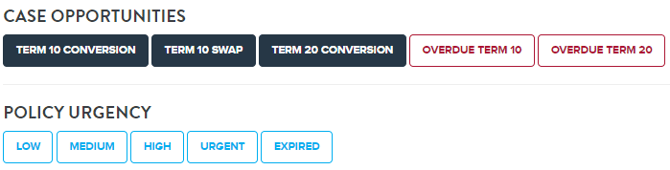
Opportunities can be found on the top right with the case opportunity and urgency filters.
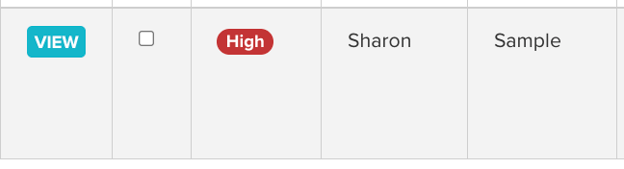
To access the client's profile, select the view icon to the left of their name.
Screenshot 2026-07-09 at 1.09.53 PM

Finding Opportunities

Opportunities:
A function used to identify upcoming case opportunities in Accelerate. The function works off of issue date, policy status, product type, product duration and plan name in order to generate automated cases, notifications, and urgency tags. Available urgency tags are Low, Medium, High, Urgent and Expired. Expired tags represent that an urgency/opportunity was generated for the product; however, the term has passed, and thus, the policy has likely already renewed. Expired tags generate when a policy with urgency reaches its renewal date.
 
Statuses required by default (can be adjusted in a user's account settings):
INFORCE
Active (inforce)
Active+
Inforce (commission paid)
Inforce (commission not paid)
 
Opportunities can only be generated on products with a "Term" product type set by the carrier.
 
Term Ten (10) Opportunity:
Policies must be in their 7-10th year, with policies in year 7 being deemed "Low" priority, and policies 3 months from renewal are considered Urgent. Below are the various urgency thresholds:
 
Urgent: 3 months prior to renewal
High: 1 year prior to renewal
Medium: 2 years prior to renewal
Low: 3 years prior to renewal
 
Term Twenty Opportunity:
Policies must be in their 15-20th year, with policies in year 15 being deemed "Low" priority, and policies 3 months from renewal are considered Urgent. Below are the various urgency thresholds:
 
Urgent: 3 months prior to renewal
High: 2 years prior to renewal
Medium: 3 years prior to renewal
Low: 5 years Prior to renewal"
 
Term Exchange Opportunity:
Policies must be in years 3-5, with policies in year 3 being deemed "Low" priority, and policies 3 months from their 5th renewal are considered High. Below are the various urgency thresholds:
 
High: 3 months prior to 5th renewal
Medium: 1 year prior to 5th renewal
Low: 2 years prior to 5th renewal

Client Profile

Navigation

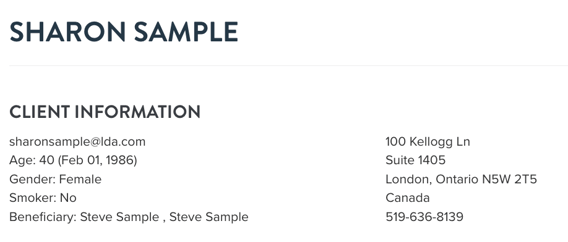
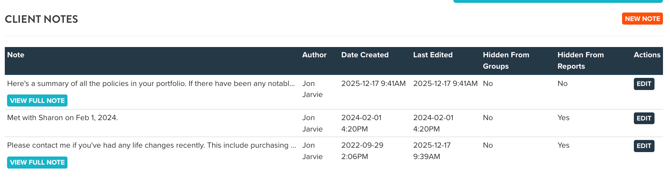
The top portion of the client management page features more personal and contact details, as well as a dedicated notes section.
Screenshot 2026-07-09 at 1.18.09 PM

Screenshot 2026-07-09 at 1.18.28 PM

The center portion is where you'll find the cases created for the client, as well as the policies imported to Acceleratel. If you wish to create a new case for that client, click the new case icon as shown below.

Screenshot 2026-07-09 at 1.19.00 PM

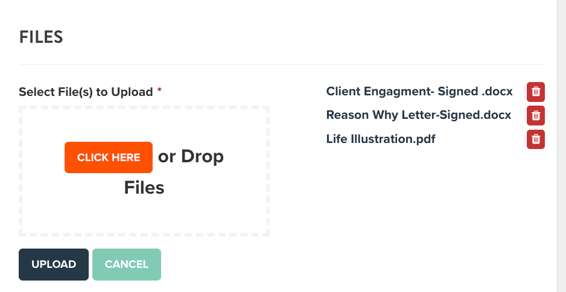
Document storage is available on the lower right side of the page. You can back up any client files saved to your computer here.
Screenshot 2026-07-09 at 1.19.19 PM

At the bottom of their profile is where you can see all the market surveys you've saved.

Screenshot 2026-07-09 at 1.19.35 PM

Policy Summary Report

If you wish to show your clients a summary of all their policies, you can do this by selecting the Generate Policy Summary icon on the top right of their profile.

When selected, Accelerate will generate a white-labeled summary for that client showing their policies on one page.
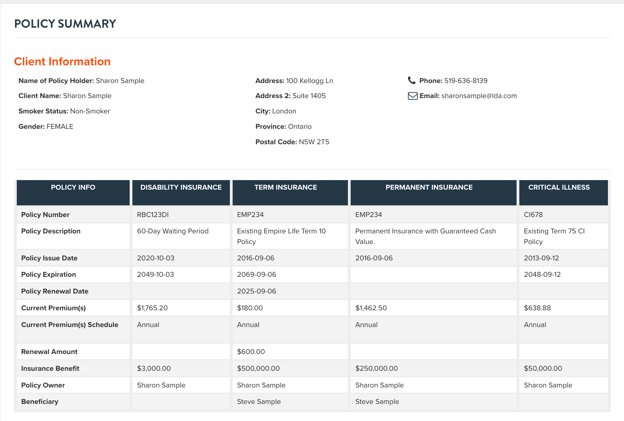
Screenshot 2026-07-09 at 1.20.17 PM

These can be shared with the client with a unique link, through the share icon on the top right of the page. This will provide you with a notification when the client views the summary report.

Screenshot 2026-07-09 at 1.20.35 PM

TIP: You can add a custom note with the policy details through the note section in the client's profile.

Still Need Help?

Feel free to contact our customer success team! You can speak to the team directly in Accelerate through the green chat button on the right side of the page.

We're also available for meetings. If you want to schedule a one-on-one meeting, please use the link below!

Click Here To Schedule A Meeting