
Case Creation
To learn more about creating a presentation in Propel, click here to view the case creation training guide.
Groups
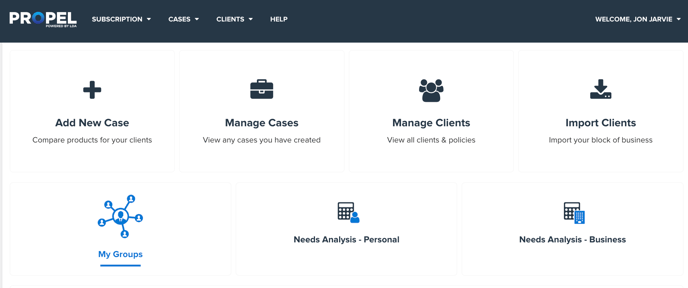
The "My Groups" option on the home dashboard page is where sharing clients and cases with the advisor begins.
Creating a Group
Before you can share a client and case with an advisor, you'll need to create a group and invite that advisor to join. When you select "My Groups", the next page will list all the Groups you're in and offer an option to create a new group on the top right of the page.

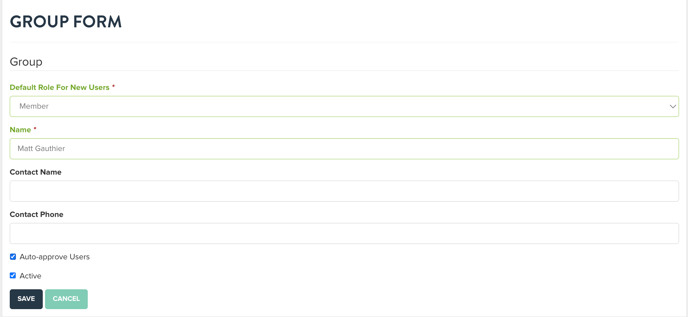
When you select "Add New Group", you'll need to enter the following details;
Default Role for New Members: Do you want them to have admin access to share their own clients, and advisors or have the ability to remove them?
Name: Label for the group. If only one advisor is in the group, put the advisor's name as the group name.
Optional: Contact Name and Phone Number.
TIP: To expedite the process of creating the group, select the "Auto-Approve New Users" check box.
Select Save to Create the group.
Inviting Advisors To Your Group
Now that you've created the group, the next step is to invite advisors to join so they can received the cases you've created.
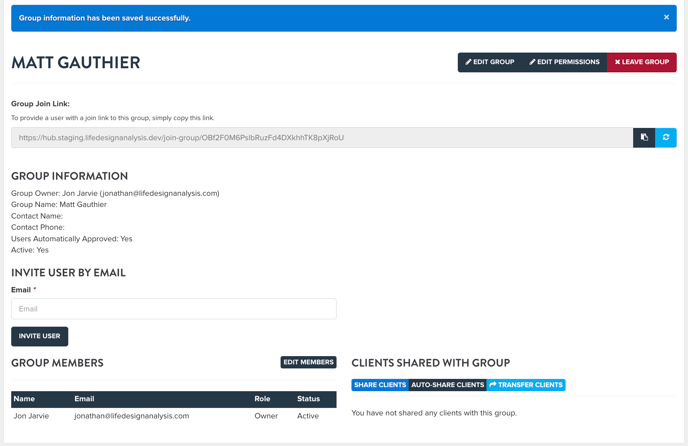
On the page for the group yu've created, you'll find an URL link at the top of the page. Select the copy URL icon and paste it in an email to the advisor.

When they log into Propel and open the link, they'll be added to the group automatically.
 Sharing Client's And Cases
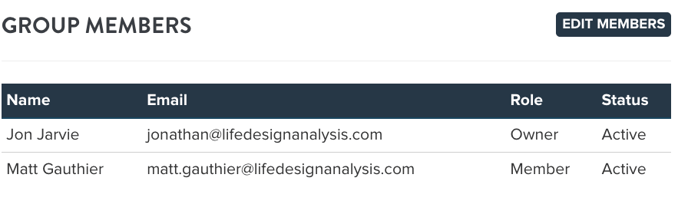
Next you can add clients to that group for the advisors to access in Propel. Along with the client, all cases created for them will be sent when sharing.
To share the client, click the "Share Clients" icon on the bottom right of the page.
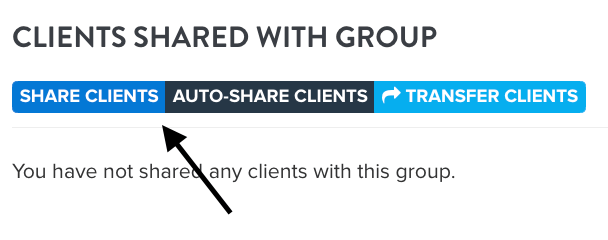
When selected, you'll be brought to this new page. Enter the clients first name in the text box to search your client listing. When the name appears below, click on the name.
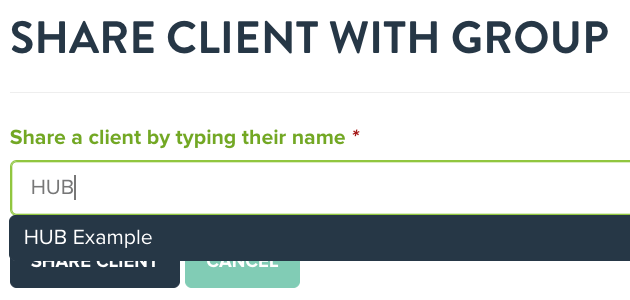
Once you click on the name, it will appear in the text box above. Select the Share Client icon add them to the group.
You'll be redirected to the groups page and see the client in the bottom right section of the page.
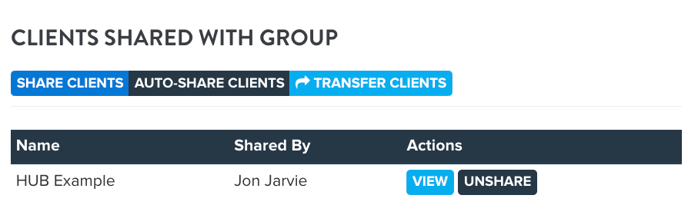
The advisor can now find that client in their Propel account and present the insurance case to the client with their name and branding.
Transferring The Client Ownership
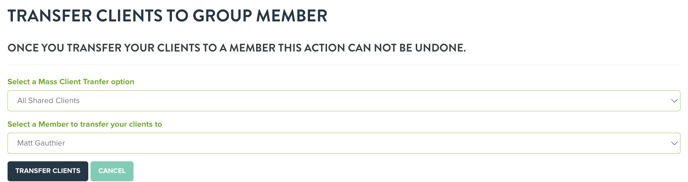
Once you've created the case for that client, you likely won't need to work with them again. If that is in fact the case, you can transfer the ownership of the client from you to the advisor. This means is the advisors can make future edits to the client, if necessary.
To transfer the client, select the transfer client option, highlighted in the image above. On the next page, all you need to do is select the member of the group you wish to be the owner of these clients and select the transfer option.
Support
To learn more about the sharing capabilities of Propel presentations, use the meeting link below to schedule a meeting with our customer success team.