.png?width=106&height=50&name=Copy%20of%20LDA%20Logo%20RGB%20(1).png)
Case Study
Nathan (36) and Sarah (37) are two professionals who make $60,000 and $110,000, respectively.
They have two children (age 5&3). They recently purchased their forever home, so their income is going primarily to the new mortgage and saving for their children's future. Nathan and Sarah were asked about their income gap if something were to happen to Sarah. Here is a breakdown of their situation.
Mortgage: $405,000
Consumer and Car Debit: $40,000
Using Propel, design a recommendation for Sarah to cover her needs.
Creating the Presentation
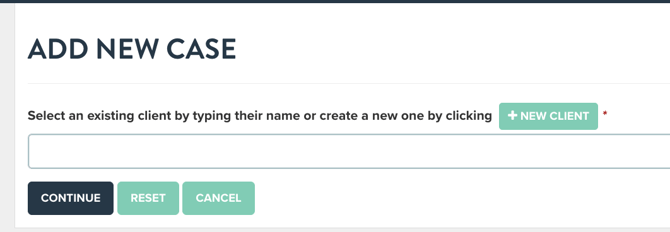
All presentations in Propel start by selecting the "Add New Case" option on the home dashboard. Once selected, click either of the +New Client buttons to create the client.
Establish the Insurance Need
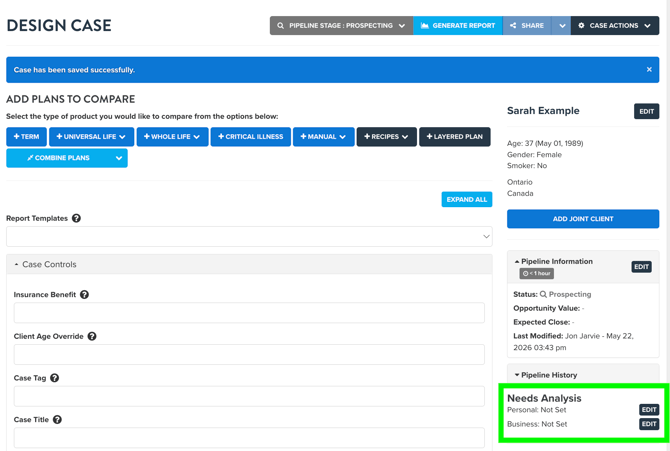
This case study has outlined the need of the client. For compliance sake, we'll want to start by creating a needs analysis based on the values list above. To do this, go to the "Edit" button for the personal needs analysis. This can be found on the right side of the design case page, under the pipeline history.
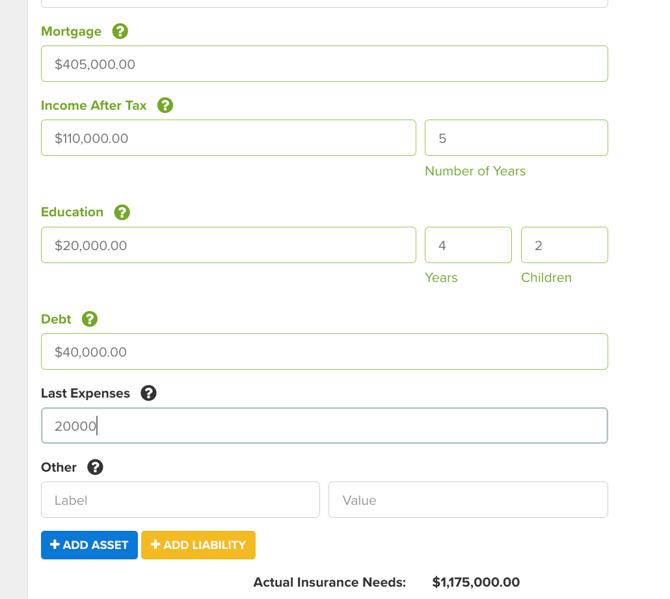
When entering data in the needs analysis, note that current insurance and assets will be deducted from the insurance need. Mortgage down to "Other", will add to the need. Enter the values from the case study description into the appropriate section. Select "Save Changes" when completed. This saves the needs analysis to the case.
Feel free to tailor the needs analysis to your preference for items such as income replacement, education, and final expenses.
Adding Insurance Recommendations
Term
If you wish to add one or more term plans, select the +Term button.
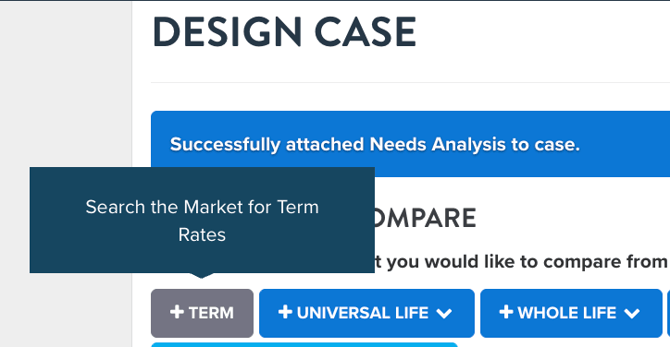
This will connect you to the rate integration built into Propel to survey the market for recommendations.
The next page, labelled plan specifications, is where you enter the details of what you want to search. We recommend entering the following;
- Insurance Benefit* (You can search by Premium if you wish)
- Smoker Status (If applicable)
- Term Length
- Health Status
- Premium Schedule
- Company Filter**
*You don't have to search for the same benefit as calculated in the needs analysis or as other plans in your Propel Presentation.
**Most advisors have the preferred company filter set up in their Propel account. This allows you to search only the carriers you have a contract with or wish to see in the results.
Select search to see the results.
The results all have the same action buttons below the annual or monthly initial premium.
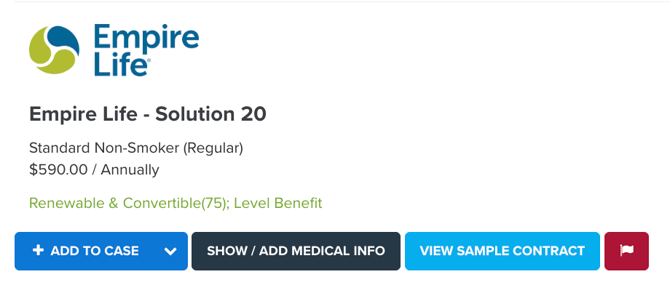
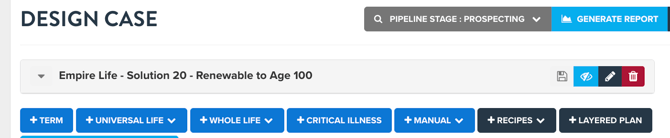
Selecting the " Add to case" button will add that plan to the design case page. Once it appears above the blue product buttons, that means it's included in your presentation. You can add any additional product to the report to compare. There is no limit on the carriers, product types, term lengths, insurance benefits, or number of plans.
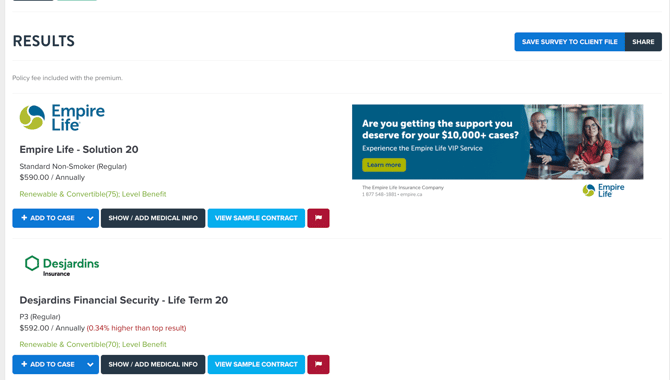
TIP: You can save the market survey to the client's profile and generate a report for just the market survey reults by clicking the "Save Survey to Client File" button on the top right of the survey results page.
Permanent
For permanent plans, you have two options;
1. Market Survey Search and Add.
2. Adding data from the carrier illustration software.
Option one follows the same steps as provided earlier for term insurance. However, instead of selecting the +Term button, you'll select the button of the plan type you wish to add, followed by the search rates option in the dropdown menu.
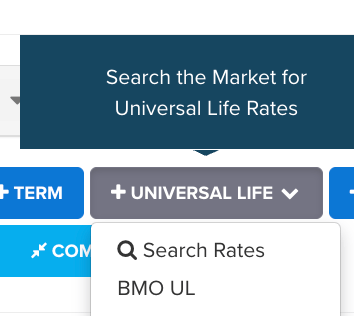
Once selected, you'll be brought to the same page as the term search. The only difference is that the lengths are permanent, not temporary, since you've selected a permanent plan type.
This step is only recommended for Minimum Funded UL plans and Non-Par Whole Life plans. Since market surveys are price-based and only show guaranteed premium, cash value and death benefit, most carriers opt not to include their Par plans in the survey results. If you're working Par Whole Life or Overfunded UL, follow option two.
With option two, you can load in any configuration of UL or Whole Life plan to Propel via the spreadsheet export carriers offer in their illustration software. To load in these plans, click the UL or Whole Life button and select the carrier you wish to load in.
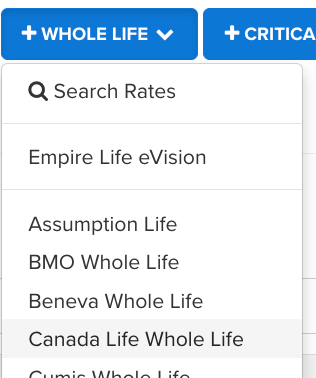
When selected, Propel will load options above the product buttons, asking you to import a saved spreadsheet file or copy and paste data from a spreadsheet.

Next, you'll go to the carrier's illustration software and design the plan you wish to show in Propel. As mentioned earlier, Propel requires a spreadsheet, not a PDF illustration file. Every carrier offers a data or spreadsheet option in their illustration software.
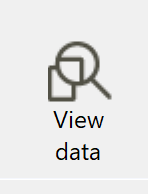
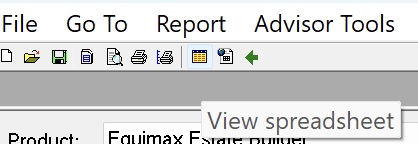
Selecting this will allow you to download an Excel file, or the file will open automatically in Excel.
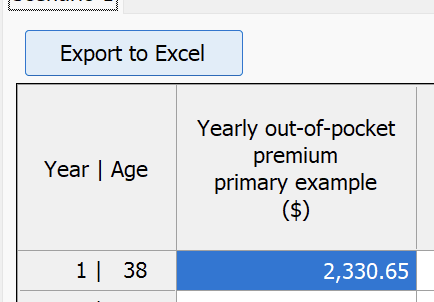
If the spreadsheet downloads automatically to your computer, you can import it to Propel through the import spreadsheet file button. Simple select the click here button to open up your file explorer and select the file. Propel will load all the data into your case.
If Excel opens when you select the export option in the carriers illustrator, you can simply copy and paste the data into Propel. To copy the data, click the triangle icon to the left of the A column and above the 1st row.
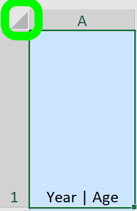
This will highlight all the data, including the column headers. Right-click and select copy. Once copied, go back to Propel and select Paste Spreadsheet Data. A textbox will appear. Right-click and paste the data into the textbox.
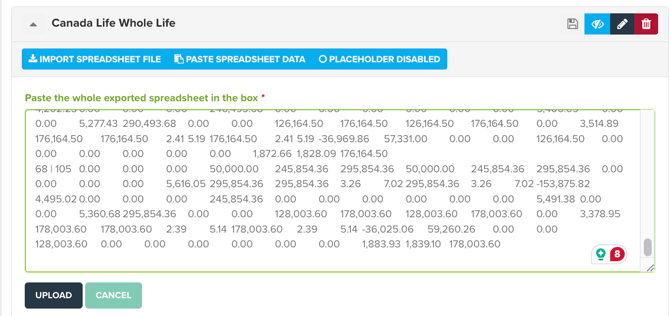
Although the data will look messy, like the screenshot above, when you select the upload button, all the data will load correctly.
The end result will look like this. You'll see a "Plan has been imported successfully" message, and the import and paste option won't be there. This means all the data has loaded correctly, and you can proceed by adding additional plans or customizing the report.
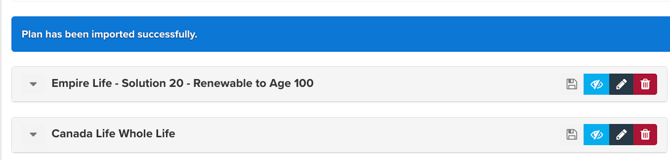
TIP: Want to add another plan? Just repeat the steps above!
Customize The Report
Once all of your plans have been brought in, you can now customize the report. The first area to consider is the name of the plan. The navy blue blue in the image above, called edit plan, allows you to change the name and add a description. We highly recommend following these steps if you've brought in a spreadsheet, since we initentionally leave the name vague for you to modify. Select the save button once completed.
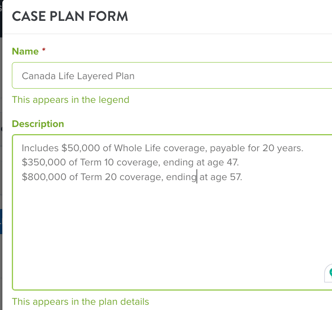
Once the plans have a new name and description, you can customize the setting of the case. This includes;
- The pages (Output).
- Custom notes or documents.
- Concepts.
To select the best pages for the report you're working with, we recommend using the the report templates option. You'll find report templates directly below the blue plan buttons.
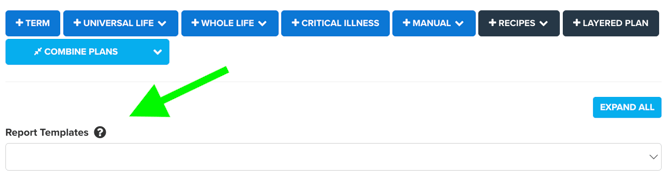
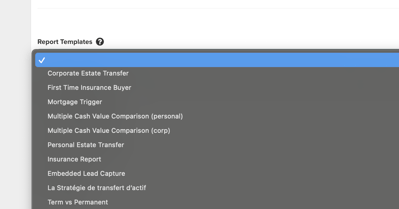
The list you'll find chooses the best page options for the concept or report type.
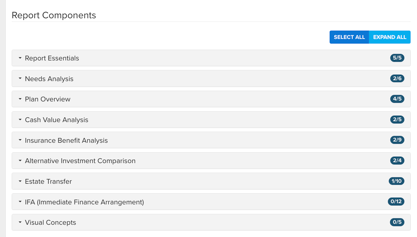
You can modify the pre-selected pages or manually pick the pages you wish to show in the report component section of the design case page. To find this, scroll to the bottom of the design case page.
To add a custom note to the report, go to the notes drop down. Here is where you can enter in a custom message or choose from template documents to provide additional information or compliance elements into the Propel presentation.
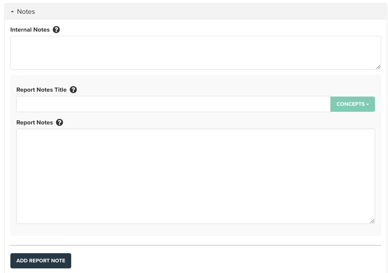
Internal notes are just for you, or anyone who has access to the presentation. This can be your administrator, another advisor who supports the same client, or HUB's support staff.
Report notes will show in the presentation as a custom page. Advisor use this page to provide context about the insurance presentation, or to add a compliance document, such as a reason why letter or disclaimer.
To add in these documents, select the concept button shown in the image above. You'll see options for insurance concept descriptions or compliance doucments.
When you select an option from the menu, the template text will appear in the report notes text box. Simple fill in the blanks based on your clients need and the recommendation you wish to make.
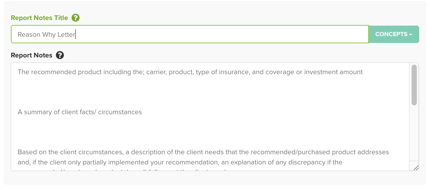
TIP: You can add more than one report note to a Propel presentation. Also, if you have a compliance document already created, sent it to our team to upload in your account! (Please note these files have to be text based. Word and PDF documents are recommended).
Since a Corporate Estate Transfer or Immediate Finance Agreement won't be used in this case, we can skip these options. Please note these are available for future presentation!
Generate and Share
When you've added your plans and customized the report, the next step is to generate the presentation mode. To do so, select the "Generate Report" button at the top of the page.

TIP: This saves the report and generates the presentation. If you select this button, there is no need to click the save option at the bottom of the page. The save button is needed if you're going to leave the "Design Case" page without generating the report.
This will load the interactive presentation in your Propel account. This can be shown to a client virtually or in person. If you wish to share the report to a client, we recommend using the "Share" button on the top right of the page. This will produce a custom URL of the presentation to share with the client.

There are many benefits to sharing the report in this format.
For the client, they can see the true, interactive version of the presentation. This allows them to see the values on the chart, toggle the legend options and expand and retract the tables from the default 5-year increments.
For the advisors, these documents include additional security settings, such as an expiration date and password protection.
These case links are also heatmapped. This means Propel records when the report is opened, how long the presentation is viewed, how long each page is viewed, and how much interaction is done by the client. When the client views the link, you'll get an alert via a notification informing you that the client has view the report. The stats will come along with it.
To see more about each page on the report, click here to watch the video breakdown.
Contact Us For Support
We hope you've found this guide to be helpful. Remember, you can design this and any case in Propel however you'd like. If you have any questions, please contact the LDA Customer Success team via the link chat built into Propel.