.png?width=106&height=50&name=Copy%20of%20LDA%20Logo%20RGB%20(1).png)
Navigation
When you log in to your Accelerate account, you'll start at the dashboard, which is the homepage of your account.
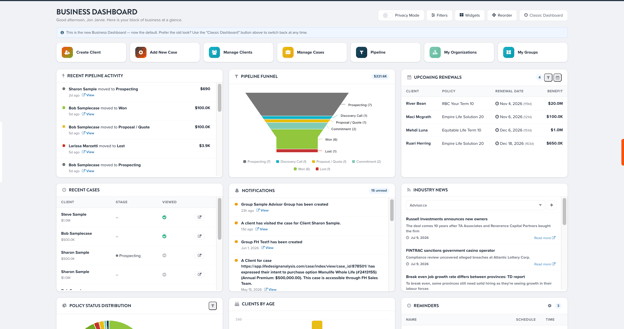
If you wish to return to the dashboard anytime, click the Accelerate logo.

Here are the main options you should focus on as a new user of Accelerate;
1. Add New Case
This section is the starting point for designing a presentation in Accelerate. In Add New Case, you can create a new client to work with or search for a client in your database.
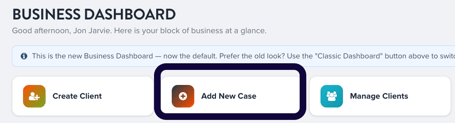
Click here to learn more about creating your first case!
2. Manage Cases
This section will act as your file folder for all your presentations. Find cases you or Accelerate designs when an inforce policy opportunity is detected, and search for sample cases, or cases shared with you by a colleague or support staff with your MGA.

When using the manage cases page, the presentation will show the most recently created/modified report at the top and the older ones below.
To access one of these cases, select the view icon on the left-hand side.
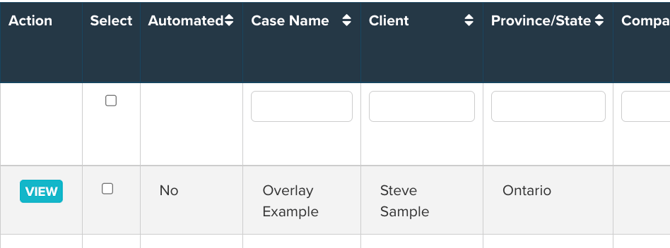
Each header is sortable and has a search bar directly below it to find a specific client or case.
3. Manage Clients
Here is where you'll find all clients/prospects you've created or that have been uploaded by the Accelerate team to your account (learn more about this here). Search for a specific client, policy, opportunity and more.

To learn more about policy management in Accelerate, click here!
Each of the listed options is available on any page with the icons on the left side of the page.
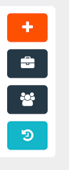
The last option takes you back to the last case you were working on. We recommend using this to quickly resume working on your case.
TIP: Adjust your internet browser zoom settings to 67-80% for the best viewing experience when using Accelerate. This won't adjust the zoom setting for other websites.
You can find the manage cases option and manage client option in the toolbar at the top of the page.

Other Areas of Importance
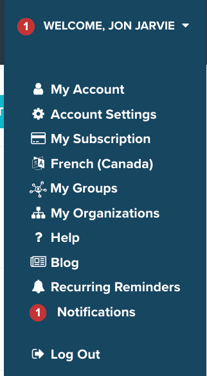
At the top of the page, you'll see an area that says welcome and your name. When hovering your cursor over this section, a dropdown menu will appear.
My Account is where you can change your password, set-up E-App integration with Empire Life's Fast and Full program, and get the code for your website to set-up the Embedded Needs Analysis. Click here to learn more.
Account Settings is where you can modify your branding, default page options, colour scheme, notification preferences, company filters and more!
Notifications are where all your alerts are in Accelerate.
Notifications
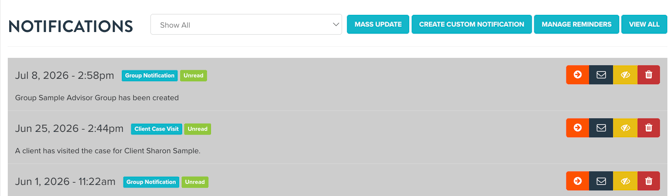
The notification page is where you'll find all alerts from Accelerate in one location. Accelerate will provide a list of all notifications. Here is a list of the notification types;
- Term 10 and Term 20 Upcoming Renewal Alerts.
- Potential Term 10 Exchanges.
- Potential Term 10 and 20 Plans Past Initial Term.
- Client Birthdays.
- Case Visits
- Policy Summary Report Visits
- Market Survey Report Visits
- Filled In Shareable Needs Analysis
- Custom Notifications Created by You.
- New Web Leads from Accelerate Embedded Needs Analysis (Add-on to Propel Subscription).
All notifications are sent through Accelerate and accessible in your account. Accelerate will send an email out daily or weekly if you have any unread notifications.
Support
The "Ask us a Question" tab is our livechat and is located on the right of the dashboard and all other pages in Accelerate. Here is where you can speak with one of our customer success representatives, and it's the best resource to receive assistance with anything in Accelerate.

If you prefer to learn with video content, check out our YouTube channel with the link below.
Remember, our customer success team is happy to help prepare for insurance meetings and design cases. If you'd like to schedule a meeting, please use the link below.