.png?width=106&height=50&name=Copy%20of%20LDA%20Logo%20RGB%20(1).png)
LDA has built-in market survey integration with all the carriers across Canada. For most advisors, this data is added straight to an LDA presentation for one of the plans from the market survey results. However, we've received numerous requests from our subscribers about the ability to produce the results in a client-facing report. This functionality is already built into LDA! Here are the two ways this report can be produced;
1. Through a new case
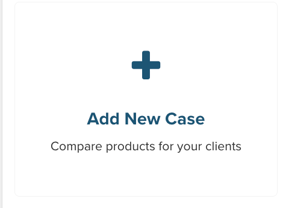
Start by creating a case for a new prospect or existing client. This can be done by selecting "Add New Case" on the home dashboard.
Select either the new client button and fill in the client information or enter the first name of the client you wish to work with if you've created the client for a past case or imported your block of business to LDA. Make sure to select the name in the search results below the text bar to choose their client profile.
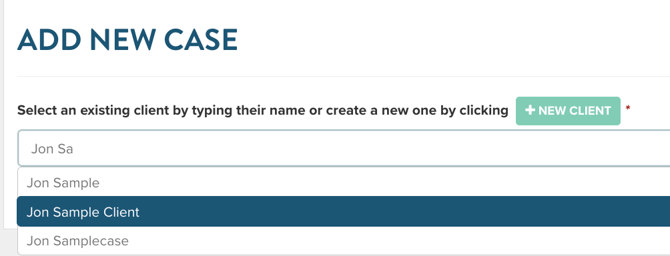
Click continue to proceed.
To learn more about importing your clients, click here.
Once on the design case page, select the button associated with the product you wish to search. You'll find this at the top of the page under the "Add plans to Compare" text.
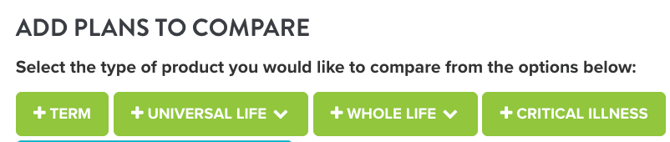
Please note, for UL and WL plans, you'll need to select the search rates option at the top of the dropdown menu when you select one of those options.
You'll then be brought to the plan specifications page, where you can enter the details of the plan you wish to search. Once you have the correct details, click the search button at the bottom of the page. This will load the results of your market.
When the results appear, you'll find two buttons on the top right of the page.
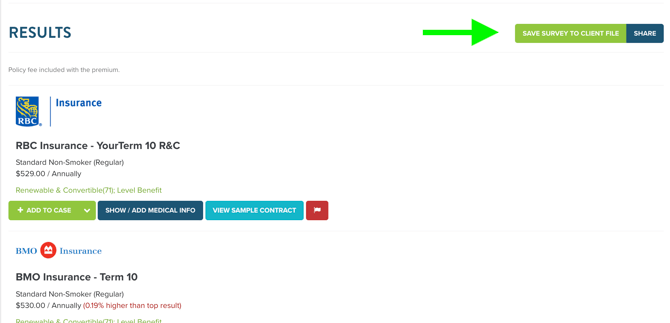
Save Survey to Client File & Share
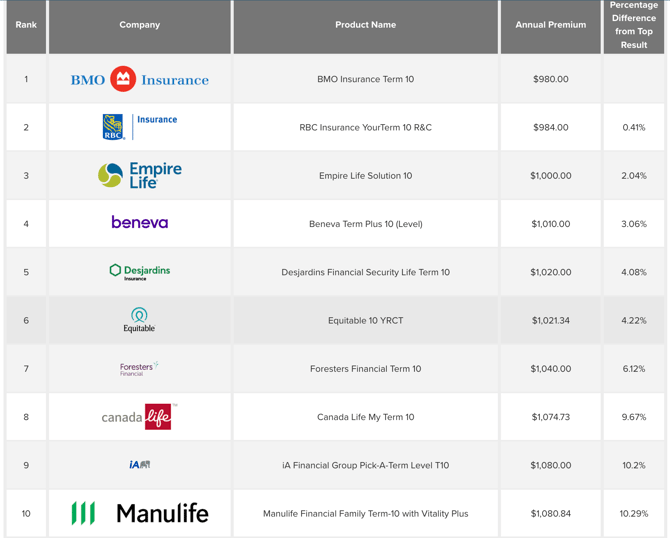
When selecting either button, it will produce a white-labelled report listing the market survey results that you can share or present to a client. Selecting the share button on the previous page will provide a custom URL of the report that you can send to a client at the top of the page. If you wish to share the report, but didn't select the share button, we provide it above the cover page.
The report will show the top 10 options from the market survey results.
2. Through a client profile
If you've imported your block of business in LDA, you will have a specific profile page for each client to view more of their information. On this page is an option to produce a market survey report. To find the client profile, select manage clients options from the home dashboard.
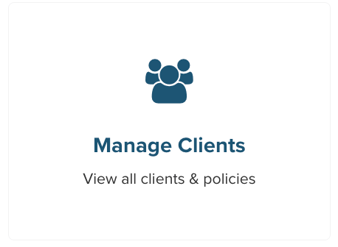
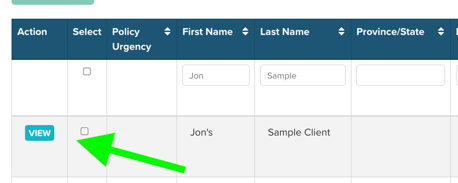
When on the manage client page, you'll find headers listing client information on the left side and policy information on the right. Click on the text bar under the first name or last name header and enter the client's respective name. Once the client appears below, click the view button on the left side of the page.
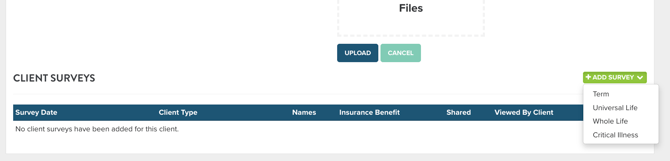
Once the client profile loads, scroll to the bottom right and look for the green Add Survey button. When selected, you'll see a dropdown menu with different plan types. Select the plan you wish to search.
This will load another plan specifications page. Enter the details, select the search button, and the results will appear. Just like searching from the design case page, you'll find the same buttons as before to produce the market survey report.
Additional Information
These reports will be saved to the client's profile automatically for documentation purposes. These reports can also be downloaded to a PDF file for saving locally on your device.
If you use the shareable URL link, LDA will provide a notification once the client views the report.
To view a sample market survey report, click here.